Understanding the Preview Screen
After Decode processes an uploaded spreadsheet sheet and its status becomes PreviewReady or MissingIdentifier, you need to review it before the data can be added to your Table. Clicking the "Review" button for that sheet in the Recent Uploads section will open the Preview & Mapping Dialog.
This dialog is your central hub for verifying Decode's automated work and ensuring data accuracy. It contains several key sections:
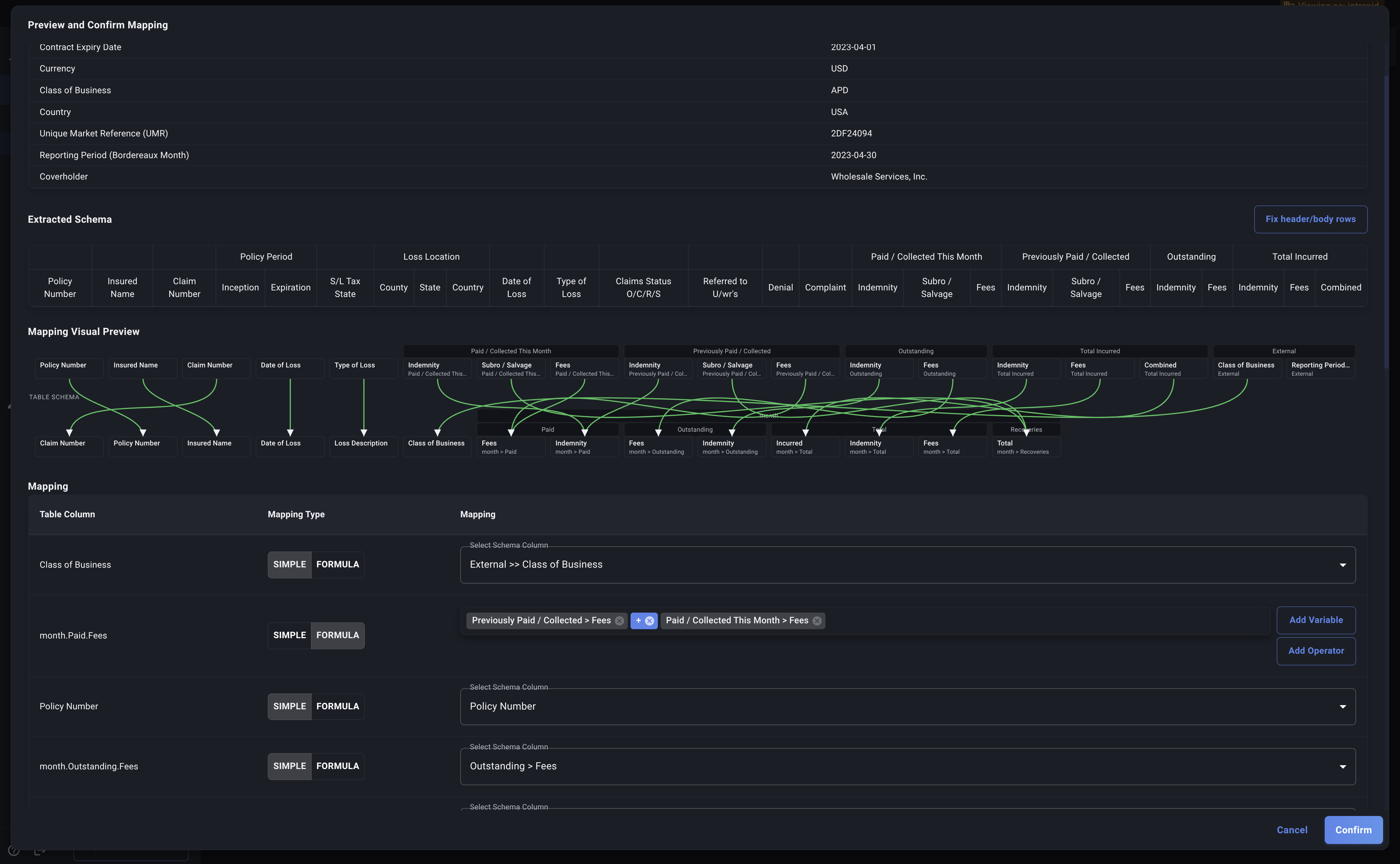
Key Sections of the Preview Dialog
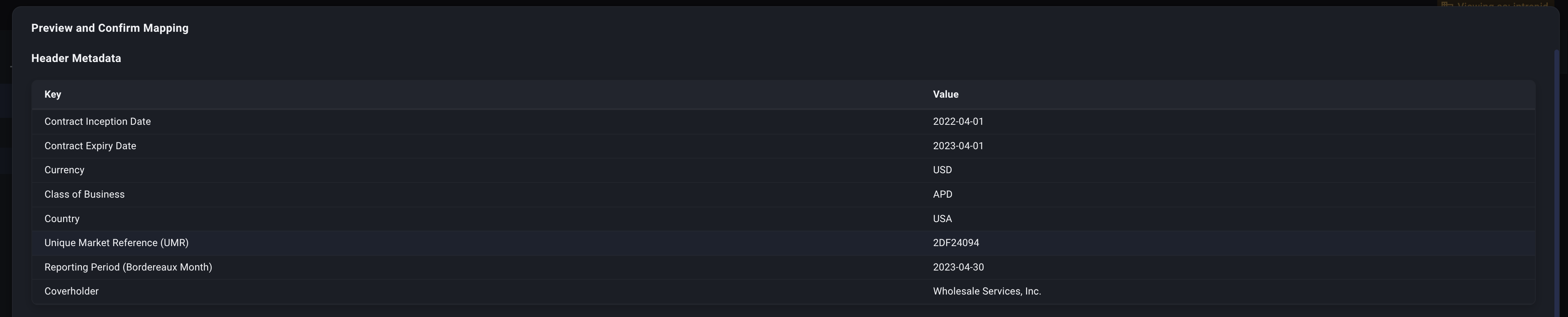
- Header Metadata (If Applicable):
- What it shows: Information Decode extracted from the header rows (top few rows) of your spreadsheet if you have mapped any header fields during the Table Creation or mapping correction process.
- Purpose: Allows you to verify that key contextual data (like 'Report Month', 'Wholesaler Name' if present in the header) was correctly identified.
- Extracted Schema:
- What it shows: A visual representation of the column structure Decode detected within this specific spreadsheet sheet. It shows the column names and any nesting it found.
- Purpose: Helps you understand how Decode interpreted your sheet's layout. You can compare this to your actual spreadsheet if needed.
- Fix Header/Body Rows: If the schema looks incorrect (wrong columns, missing headers, or data appearing in headers), click the "Fix header/body rows" button to manually specify the structure.

- Mapping Table:
- What it shows: This is the core review area. It lists all the columns defined in your target Decode Table (Identifier, Attribute, Detail, and Metric fields for Time Series tables) and shows how Decode has proposed mapping the columns from your spreadsheet to them.
- Purpose: This is where you verify and correct the mappings. You'll see which spreadsheet columns (including header data, identified like
External >> HeaderFieldName) are matched to each Table column. Unmapped columns will be indicated. - We'll cover this in detail: See How Mapping Works and Correcting Mappings.

-
Missing Fields (If Applicable):
- What it shows: If Decode detected that columns in your Table schema are missing from the spreadsheet or couldn't be mapped, they will be listed here.
- Purpose: Highlights critical omissions that would cause the upload to fail if not addressed.
-
Sample Data Preview:
- What it shows: The first few rows of data as they would appear in your Table based on the current mapping settings in the dialog.
- Purpose: Allows you to quickly sanity-check the results. Do the values look correct? Are they in the right columns? This helps catch mapping errors visually.
-
Action Buttons:
- Cancel: Closes the dialog without saving any changes you made to the mappings.
- Approve: Saves any mapping changes you made and signals to Decode that this sheet is ready for final ingestion into the Table. You must click this for the data to be loaded.
Familiarize yourself with these sections. Your primary task in this dialog is to carefully examine the Mapping Table and use the Sample Data Preview to ensure everything aligns correctly before clicking Approve.
If the extracted schema doesn't match your spreadsheet's actual structure, use the "Fix header/body rows" button to manually override the AI detection before proceeding with mapping corrections.
Next, let's understand How Mapping Works in more detail.