Manually Fixing Structure Detection
Decode uses AI to automatically detect the structure of your spreadsheets—identifying where column headers begin and end, and where the data body is located. While this works reliably for most spreadsheet formats, occasionally the AI may misinterpret unusual layouts.
When this happens, you can manually override the AI's structure detection by telling Decode exactly which rows contain your headers and which rows contain your data.
When to Use Manual Override
Consider using manual override when:
- The AI incorrectly identified your header rows (e.g., included attribute rows as headers, or missed multi-row headers)
- The extracted schema doesn't match what you see in your spreadsheet
- The data preview shows header text instead of actual data values
- You see unexpected or garbled column names in the mapping table
- A sheet repeatedly fails processing due to structure detection issues
How It Works
When you provide manual row bounds, Decode bypasses the AI structure detection entirely and uses your specified row numbers directly. This means:
- No AI guessing – your exact row specifications are used
- Deterministic results – the same input always produces the same output
- Full control – you define precisely which rows form the header and which form the data body
Accessing the Structure Override Tool
- Navigate to the sheet that needs correction (in
PreviewReady,MissingIdentifier, orFailedstatus) - Click "Review" to open the Preview & Mapping Dialog
- In the Extracted Schema section, click the "Fix header/body rows" button
This opens the Header and Body Row Selector dialog.
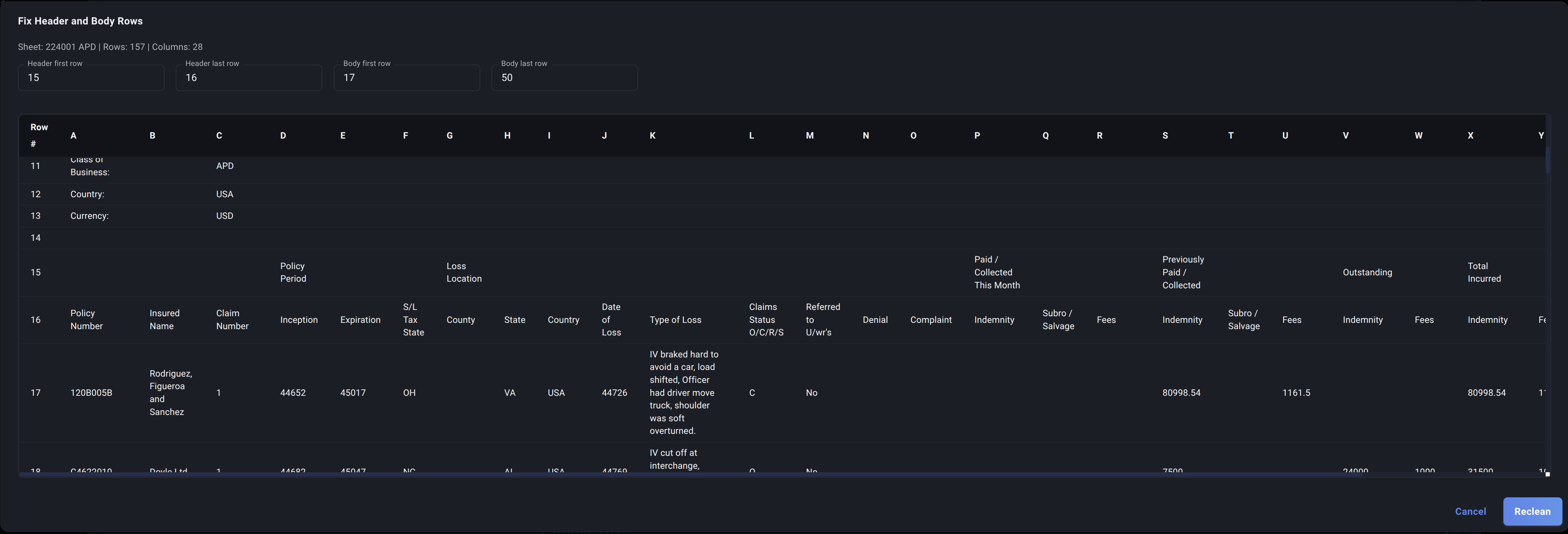
Using the Header and Body Row Selector
The selector dialog displays a preview of your raw spreadsheet data and allows you to specify four values:
| Field | Description |
|---|---|
| Header first row | The row number where your column headers begin (1-based) |
| Header last row | The row number where your column headers end |
| Body first row | The row number where your actual data begins (must be after header last row) |
| Body last row | The row number where your data ends |
Example
Consider a spreadsheet with this structure:
Row 1:  Report Month: January 2024
Row 2:  Wholesaler: ABC Insurance
Row 3:  (empty)
Row 4:  Policy Number | Insured Name | Premium Type | Amount
Row 5:                |              | Gross        | Net
Row 6:  POL-001       | Acme Corp    | 5000         | 4500
Row 7:  POL-002       | Beta Ltd     | 3000         | 2700
...
Row 150: POL-145      | Zeta Inc     | 2500         | 2250
In this case, you would specify:
- Header first row:
4(where "Policy Number" starts) - Header last row:
5(the second header row with "Gross" and "Net") - Body first row:
6(where "POL-001" starts) - Body last row:
150(the last row of actual data)
Rows 1–3 contain attributes (which Decode extracts separately) and are not part of the column headers.
Validation Rules
The selector enforces these rules:
- Maximum 4 header rows – Column headers cannot span more than 4 rows
- No overlap – The header last row must be before the body first row
- Valid ordering – First rows must come before last rows
- Positive numbers – All values must be 1 or greater
If your inputs don't meet these rules, you'll see a validation error and the "Reclean" button will be disabled.
What Happens After You Submit
When you click "Reclean" with valid row bounds:
- Decode re-processes the sheet using your exact row specifications
- The column schema is extracted from the rows you specified as headers
- The mapping is regenerated based on the new schema
- The sheet status updates (typically to
PreviewReadyorMissingIdentifierdepending on whether the Identifier was found) - The Preview Dialog refreshes to show the corrected extraction
You'll then need to review the updated mapping and approve the sheet as usual.
Tips for Success
Finding the Right Rows
- Use the scrollable table preview in the dialog to visually identify row numbers
- Look for the transition from descriptive text to repeated column patterns (that's your header start)
- Multi-row headers often have a parent row (like "Premium") with child rows below (like "Gross", "Net")
- The body starts where you see actual data values (policy numbers, names, amounts, etc.)
Handling Multi-Row Headers
Insurance bordereaux commonly use hierarchical headers spanning 2–3 rows. For example:
Row 5:  | Premium          | Commission       |
Row 6:  | Gross  | Net     | Amount | Rate    |
Row 7:  | 5000   | 4500    | 500    | 10%     |
Here, rows 5–6 are headers (hierarchical), and row 7 is where data begins.
AI Bounds as Starting Point
When you open the structure override dialog, the input fields are pre-populated with the AI's best guess (if available). These appear under ai_header_bounds and ai_body_bounds in the sheet data. Use these as a starting point and adjust as needed.
Preserving Your Override
Once you submit a manual override, Decode stores your specified bounds with the sheet. If you later need to reclean the sheet (e.g., after updating possible values), the system will use your manual bounds rather than re-running AI detection.
Troubleshooting
| Issue | Solution |
|---|---|
| "Invalid bounds" error | Ensure header rows don't overlap with body rows and all values are positive |
| Still seeing wrong schema after reclean | Double-check your row numbers against the preview table; remember rows are 1-based |
| Reclean button disabled | Check that all four fields are filled and validation passes |
| Raw sheet preview unavailable | The original sheet file may not have been preserved; contact support |
Manual structure override gives you full control when the AI needs a helping hand. For most uploads, the automatic detection works seamlessly, but this tool ensures you're never blocked by an unusual spreadsheet format.
Return to How Mapping Works or continue to Correcting Mappings.