How Mapping Works: Connecting Spreadsheet to Table
The core task during the review process is ensuring that the columns from your uploaded spreadsheet are correctly mapped to the columns defined in your target Decode Table. Decode uses a learning system called Possible Values to automate this process over time: the more you use it, the smarter it gets.
When you upload a file, Decode processes it through several stages:
- Structure Extraction — AI detects header rows, body rows, and attributes
- Schema Extraction — Column names and hierarchy are identified
- Mapping — Spreadsheet columns are mapped to Table columns using Possible Values
- Transformation — Data is cleaned, formatted, and converted to match Table schema
- Ingestion Rules — Your custom validation and transformation rules are applied
- Database Write — Clean data is written to BigQuery
This page focuses on steps 1-4. For step 5, see Ingestion Rules.
Step 0: AI Structure Extraction
Before Decode can map your spreadsheet columns to your Table, it first needs to understand the structure of your spreadsheet. Insurance spreadsheets (like bordereaux) often have complex layouts with:
- Header attributes at the top (report date, wholesaler name, contract info, etc.)
- Column headers that may span multiple rows (hierarchical or merged headers)
- Data rows containing the actual records
Decode uses AI to automatically detect:
- Where the column headers start and end (which rows contain column names)
- Where the data body starts and end (which rows contain actual data records)
- Header attributes (key-value pairs extracted from the top section)
This AI-powered extraction works automatically for most spreadsheet formats. However, if your spreadsheet has an unusual layout that the AI misinterprets, you can manually override the structure detection to tell Decode exactly where your headers and data are located.
Once the structure is understood, Decode extracts the schema (the column names and their hierarchy) and proceeds to the mapping step described below.
The Goal of Mapping
Mapping tells Decode: "Take the data from this column in my spreadsheet (or this piece of header attribute) and put it into that specific column in my Decode Table."
For example, you might map:
- A spreadsheet column called "Gross Written Premium" → Table column
Gross Premium - A header field like "Report Month: Jan 2024" → Table column
period(for Time Series tables)
What Are Possible Values?
Possible Values are the "memory" that allows Decode to automatically map your spreadsheets. For every column in your Table, Decode maintains a list of spreadsheet column names (and formulas) that have previously been mapped to it.
Think of it like teaching Decode your vocabulary:
- When you first create a Table, these lists are empty - Decode doesn't know what to expect.
- Each time you approve a mapping, Decode learns and adds that mapping to its memory.
- Future uploads with similar column names are then mapped automatically.
Example
Imagine you have a Table column called Gross Premium. Over time, different wholesalers send you spreadsheets with columns named:
- "Gross Premium"
- "Gross Written Prem"
- "GWP"
- "Premium > Gross"
After you map each of these once, all four names become possible values for Gross Premium. The next time Decode sees any of these column names, it automatically proposes the correct mapping.
Two Levels of Possible Values
Decode maintains possible values at two levels:
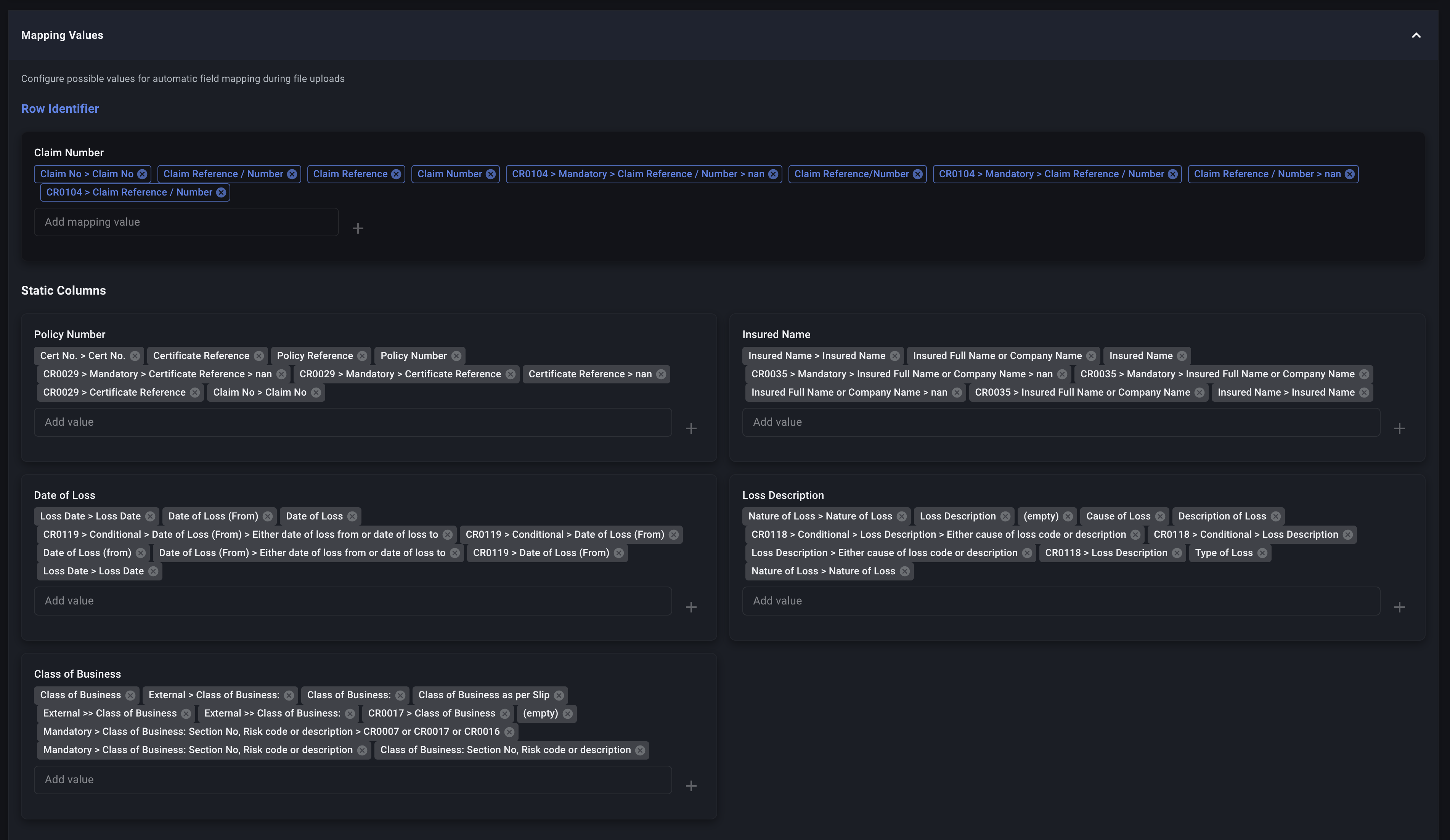
1. Global Possible Values (Table Level)
These are stored on the Table itself and apply to all uploads to that Table, regardless of which Data Profile is used. This is the master list of everything Decode has learned for each Table column.
Where to manage: Table Settings
2. Data Profile Possible Values
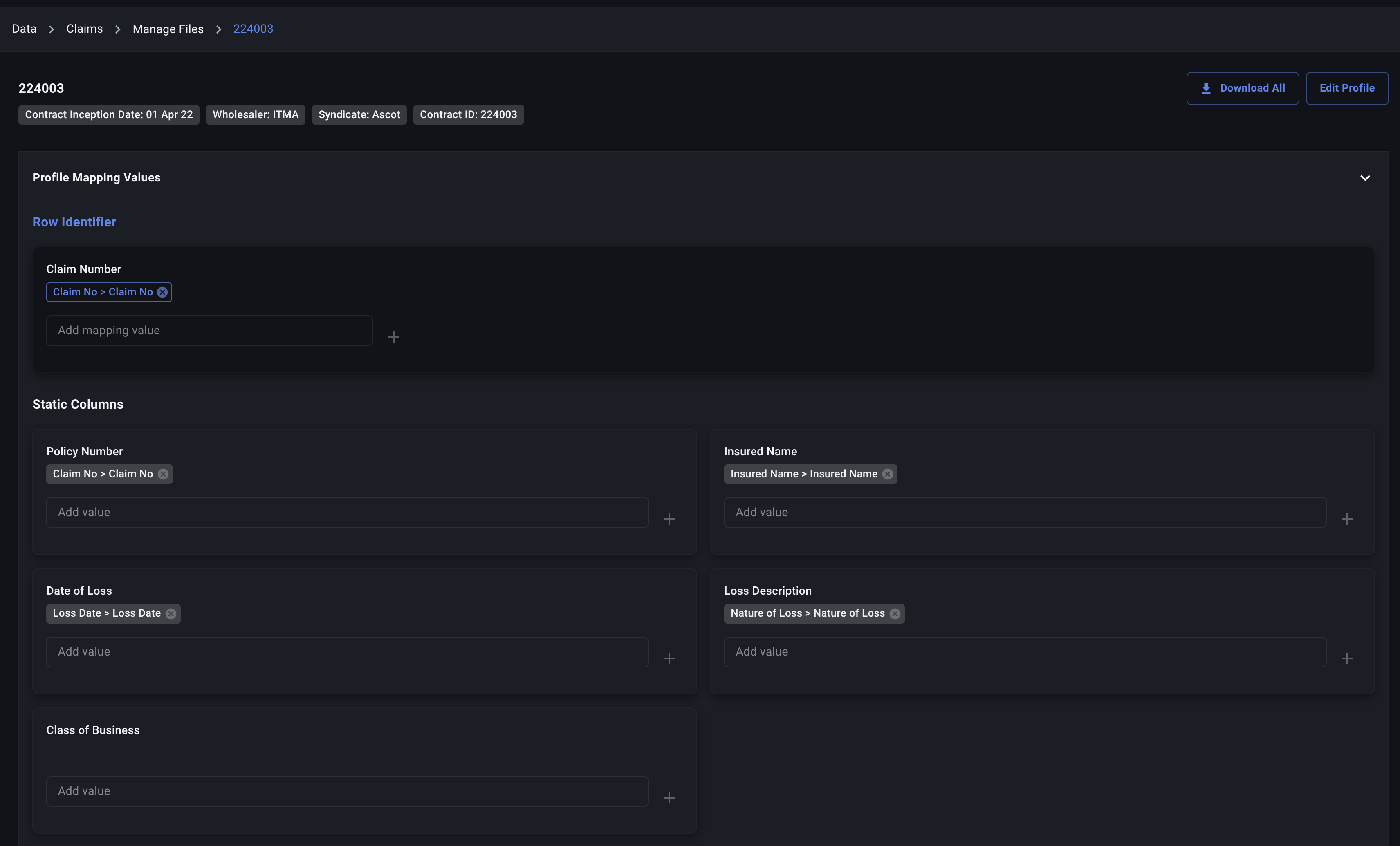
These are stored on individual Data Profiles and are a subset of the global possible values. They allow you to set preferred mappings for specific data sources.
Where to manage: Data Profile Dashboard
Why Two Levels?
Different wholesalers or data sources often use different column naming conventions. Data Profile possible values let you tell Decode: "When uploading files through this Data Profile, prefer this specific mapping."
Example: Your Table column Net Premium could be mapped from:
- "Net Premium" (a direct column in some spreadsheets)
- A formula like
Gross Premium - Fees(for spreadsheets that don't have a Net Premium column)
If Wholesaler A always provides "Net Premium" directly, you can add that to Wholesaler A's Data Profile possible values. Even though the formula exists in global possible values, the Data Profile's direct mapping will be preferred.
How Decode Proposes Mappings
When you upload a file, Decode follows this process for each Table column:
Step 1: Extract the Spreadsheet Schema
Decode analyzes your spreadsheet to identify:
- Column headers (including nested/hierarchical headers)
- Header attributes (key-value pairs from the top section of the spreadsheet, like "Report Month: Jan 2024")
Step 2: Search for Matches
For each Table column, Decode searches its possible values in this priority order:
| Priority | Source | Type | Description |
|---|---|---|---|
| 1st | Data Profile | Direct (1-to-1) | A direct column match from the Data Profile's possible values |
| 2nd | Data Profile | Formula | A formula mapping from the Data Profile's possible values |
| 3rd | Global | Direct (1-to-1) | A direct column match from the Table's global possible values |
| 4th | Global | Formula | A formula mapping from the Table's global possible values |
Decode stops as soon as it finds a match at any level.
Step 3: Fuzzy Matching
Decode uses AI when comparing possible values to your spreadsheet columns. This means small spelling differences or data entry errors won't break the mapping. For example, if "Gross Written Premium" is in your possible values, Decode will also match "Gross Writen Premium" (note the typo).
Step 4: Propose the Mapping
The results appear in the Preview Screen:
- Mapped columns: Show the proposed spreadsheet column (or formula)
- Unmapped columns: Are left blank for you to fill in manually
How Possible Values Are Updated
Possible values are updated automatically when you approve a mapping:
-
New mappings (column names Decode hasn't seen before) are added to:
- The Table's global possible values
- The Data Profile's possible values (if a Data Profile was selected)
-
Existing global mappings that you accept are also added to the Data Profile's possible values. This ensures the Data Profile "remembers" your preferred choice.
This means:
- Global possible values grow over time as you process more spreadsheets
- Data Profile possible values become tailored to the specific formats used by that data source
Mapping to Header Metadata
Sometimes the value you need isn't in a spreadsheet column—it's in the header section at the top of the spreadsheet. For example:
Report Month: January 2024
Class of Business: Property
Wholesaler: ABC Insurance

| Policy Number | Insured Name | Premium | ...
|---------------|--------------|---------|----
| POL-001       | Acme Corp    | 5000    | ...
In this case, "January 2024" and "Property" are header attributes, not column data.
When mapping, you can select these values using the External >> prefix:
External >> Report Month→ Maps to "January 2024"External >> Class of Business→ Maps to "Property"
These External mappings can also be stored as possible values, so Decode learns to extract them automatically from future uploads.
Managing Possible Values
You can view and edit possible values directly:
- Global Possible Values: Navigate to the Table settings to view and manage the master list for each table column.
- Data Profile Possible Values: Open the Data Profile dashboard to manage the subset specific to that profile.
This is useful when you want to:
- Remove outdated or incorrect mappings
- Add mappings proactively before uploading files
- Review what Decode has learned
Summary
| Concept | Description |
|---|---|
| Possible Values | Lists of column names/formulas that Decode has learned to map to each Table column |
| Global (Table) Level | Master list applying to all uploads to a Table |
| Data Profile Level | Subset of global, with preferred mappings for a specific data source |
| Priority | Data Profile direct → Data Profile formula → Global direct → Global formula |
| Learning | Every approved mapping is saved for future automation |
| External >> | Maps header attributes (top-section key-value pairs) to Table columns |
The more files you process, the more Decode learns your column naming conventions, and the less manual mapping you'll need to do.
Now that you understand how Decode proposes mappings, let's look at how to Correct Mappings and Handle Different Mapping Types.