Approving the Upload
The final step in the review process for an uploaded spreadsheet sheet is Approving it. This action confirms that you are satisfied with the schema extraction, the column mappings (including any corrections or formulas you've applied), and the sample data preview.
Approval is the trigger that tells Decode to proceed with ingesting the data from that sheet into your target Decode Table.
Before You Approve - Final Checks
Before clicking the "Approve" button in the Preview & Mapping Dialog, perform these quick final checks:
- Identifier: Crucially, ensure the Table's Identifier column is correctly mapped to the unique identifier column in your spreadsheet. If the sheet had a
MissingIdentifierstatus, this must be resolved first. - Mandatory Columns: Verify that all columns marked as Mandatory in your Table schema have a valid mapping (either a direct Simple mapping to a spreadsheet column/header or a Formula mapping). If any mandatory column is mapped to
Not Presentor left unmapped, the ingestion will fail. - Formula Mappings (If Used): Briefly review the formulas you created and glance at the Sample Data Preview to ensure the calculated results look reasonable.
- Sample Data: Does the data in the Sample Data Preview generally look correct and appear in the right columns based on your mappings?
Clicking "Approve"
Once you are confident with your review and final checks:
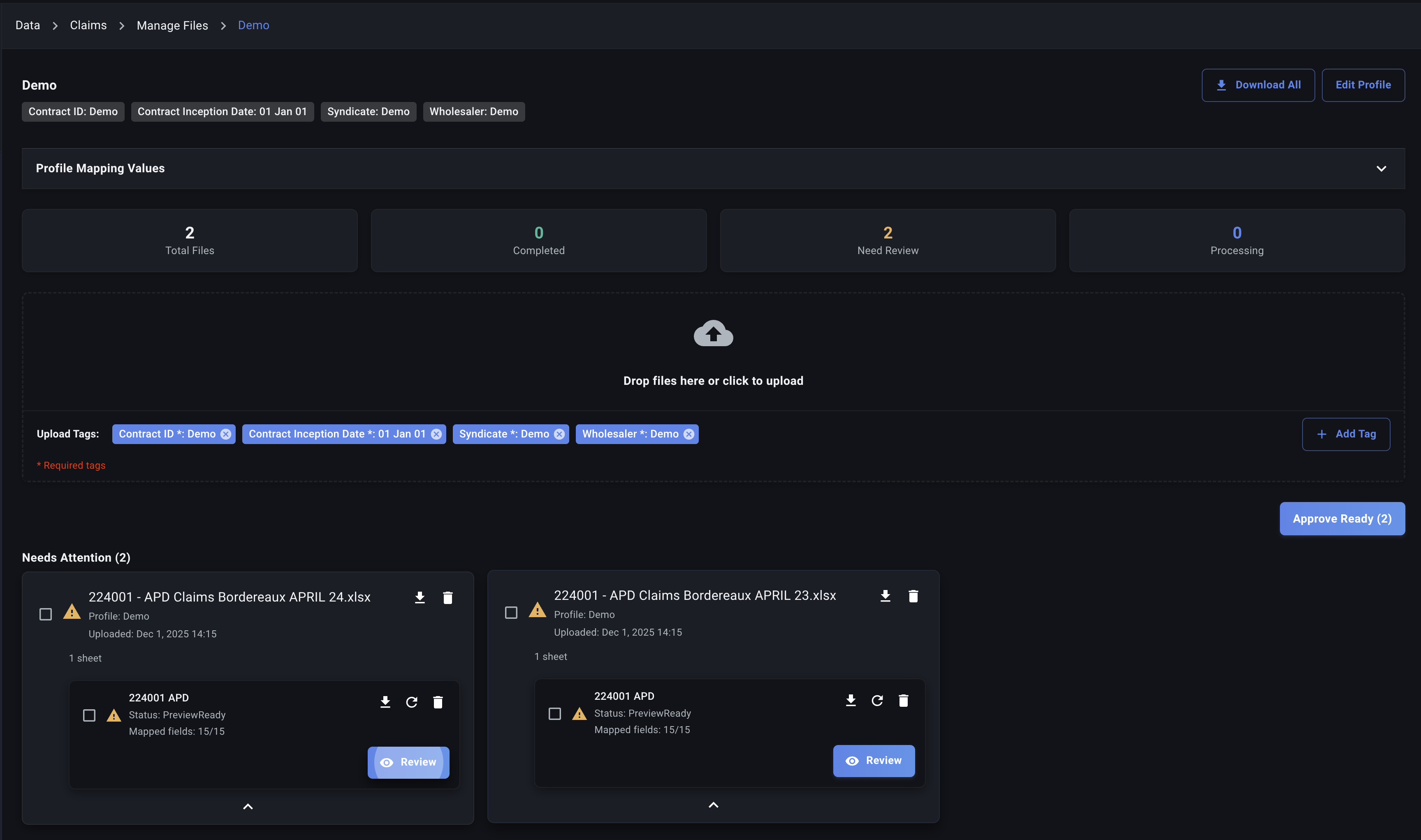
- Click the "Approve" button at the bottom of the Preview & Mapping Dialog. Note you can also "Aprove All" to batch approve ready files.
What Happens Next?
- The dialog closes.
- Decode saves the final mapping configuration (including any corrections or formulas) associated with this specific spreadsheet sheet. This helps with potential reprocessing or auditing later.
- The system adds any newly mapped spreadsheet column names to the "possible values" list for the corresponding Table columns, improving future automation.
- The sheet's status typically changes to
Readyor directly toProcessingfor ingestion. - Decode's backend system queues the sheet for final ingestion into the target Table. This involves:
- Applying the confirmed mappings to extract data row by row.
- Adding the selected Attribute Tags to each row.
- Calculating any formula-based columns.
- Using the Identifier to determine if rows should be inserted as new records or used to update existing records.
- For Time Series tables: Dynamically adding new period columns to the table if data for a new time period is encountered in a metric column structure.
- Once ingestion is complete, the sheet status should update to
Completed. If errors occur during ingestion, the status will change toFailed, and an error message should be available.
You have successfully reviewed and approved the data! You can monitor the final status in the Data Profile Dashboard.
Now that you understand the review process, let's look at Understanding Common Upload Errors. (Link assumes the next file will be created directly under uploading-data)