Correcting Mappings (Simple & Formula)
The Mapping Table in the Preview Screen is where you ensure data from your spreadsheet flows correctly into your Decode Table columns. While Decode automates much of this, you'll sometimes need to review and make adjustments.
There are two primary ways to map a spreadsheet column or header value to a Table column: Simple Mapping and Formula Mapping.
Simple Mapping (Direct 1-to-1)
This is the most common type of mapping. You are telling Decode to take the data directly from one specific spreadsheet column (or header field) and put it into one specific Table column.
When to Use:
- When a Table column directly corresponds to a single column in your spreadsheet (e.g., Table
Policy Numbermaps to spreadsheetPolicy #). - When correcting a mapping Decode missed or got wrong.
- When mapping header data (e.g., Table
Report Periodmaps to spreadsheet headerExternal >> Report Month).
How to Correct/Set a Simple Mapping:
- Locate the Table Column row in the Mapping Table that needs adjustment.
- Ensure the Mapping Type toggle is set to "Simple".
- Click on the dropdown list in the "Mapping" column for that row.
- The dropdown will list:
- All detected column names from your spreadsheet sheet.
- Any detected header fields (prefixed with
External >>). - The option
Not Present.
- Select the spreadsheet column name or header field that contains the correct data for this Table Column.
- If the data for this Table Column genuinely doesn't exist in the spreadsheet, select
Not Present. (Be careful doing this for Mandatory columns!).
- If the data for this Table Column genuinely doesn't exist in the spreadsheet, select
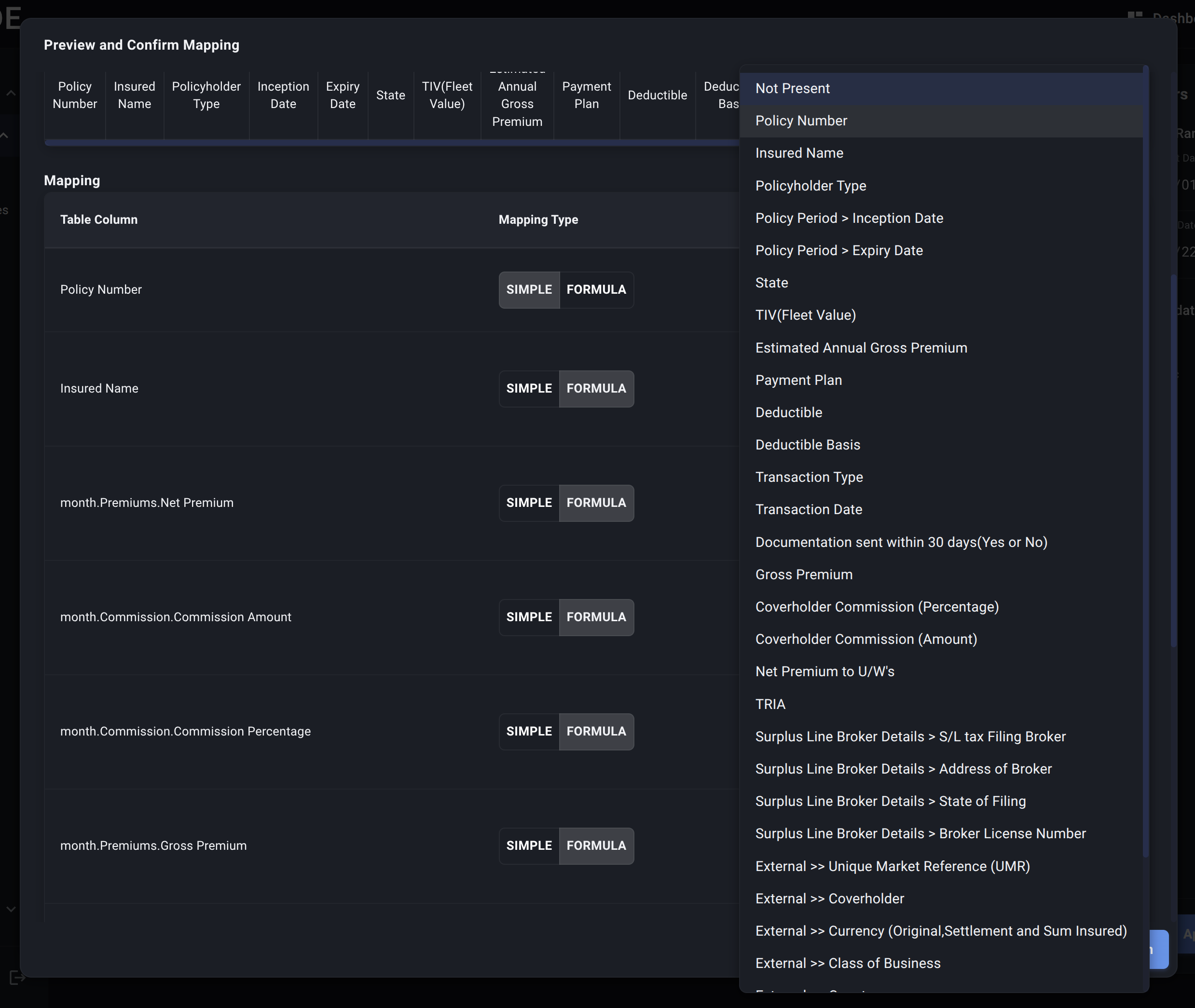
- Learning: When you select a spreadsheet column and approve, Decode adds that spreadsheet column name to the library of "possible values" the ingestion AI has access to, improving future automatic mapping.
Formula Mapping (Calculated Values)
Sometimes, a column in your Decode Table doesn't exist directly in the spreadsheet but needs to be calculated from other spreadsheet columns or tag values. Formula Mapping allows you to define these calculations.

When to Use:
- Calculating derived metrics (e.g.,
Net Premium=Gross Premium-Commission). - Applying simple transformations (e.g.,
Premium USD=Premium Local*Exchange Rate).
How to Set a Formula Mapping:
-
Locate the Table Column row in the Mapping Table where you want to define a calculation (e.g.,
Net Premium). -
Change the Mapping Type toggle to "Formula".
-
This will reveal the Formula Builder interface in the "Mapping" column.
-
Build the Formula: Use the Formula Builder buttons:
- Add Variable: Click this, then select a spreadsheet column name or header field from the dropdown menu. This adds the selected column as a variable to your formula.
- Add Operator: Click this, then select a mathematical operator (
+,-,*,/) or parentheses ((,)) from the dropdown menu. - Build your formula step-by-step by adding variables and operators.
- Example: To calculate
Net Premium = Gross Premium - Commission:- Click "Add Variable" -> Select
Gross Premium. - Click "Add Operator" -> Select
-. - Click "Add Variable" -> Select
Commission.
- Click "Add Variable" -> Select
- Delete Elements: Click the 'x' on any chip in the formula display area to remove it.
-
Validation: The Formula Builder provides basic validation (e.g., checks for mismatched parentheses or consecutive operators). Address any errors shown below the builder.
Important Considerations for Formulas:
- Data Types: Ensure you are performing valid operations (e.g., arithmetic on numbers). The system may attempt type conversions, but incorrect formulas can lead to errors.
- Column Availability: You can only use spreadsheet columns or header fields that are present in the current sheet being reviewed.
By mastering both Simple and Formula Mapping, you gain fine-grained control over how your spreadsheet data is transformed and loaded into your structured Decode Tables.
How Correcting Mappings Updates Possible Values
Every mapping you correct or set (whether Simple or Formula) teaches Decode for the future. When you approve an upload, your mappings are saved to the Possible Values system:
-
New mappings (column names or formulas Decode hasn't seen before) are added to:
- The Table's global possible values - so Decode can recognize them in any future upload to this Table
- The Data Profile's possible values (if you selected a Data Profile) - so this specific mapping is preferred for future uploads using that profile
-
Existing mappings that you accept are also added to the Data Profile's possible values, ensuring your preferred choice is remembered for that data source.
Why this matters:
- The first time you upload from a new wholesaler, you may need to manually map several columns.
- The next time you upload from the same wholesaler (using the same Data Profile), Decode will automatically propose those same mappings.
- Over time, your Table learns the vocabulary of all your data sources, and manual mapping becomes rare.
If a particular data source always uses different column names than your other sources, create a dedicated Data Profile for it. This keeps the mappings separate and ensures Decode proposes the right mappings automatically.
Next, let's address how to handle the critical Missing Identifiers.