Mapping Header Data
Often, important contextual information isn't located in the main data columns of your spreadsheet but resides in the header rows at the top of the sheet. Examples include:
- Report Month or Quarter
- Coverholder
- Contract ID
- Currency
- Class of Business
Decode allows you to extract this header information and map it to specific columns in your target Decode Table, just like regular data columns.
How Header Data is Handled
- Extraction: During the initial processing phase, Decode attempts to identify key-value pairs in the top few rows of your spreadsheet sheet. It looks for common patterns like "Label: Value".
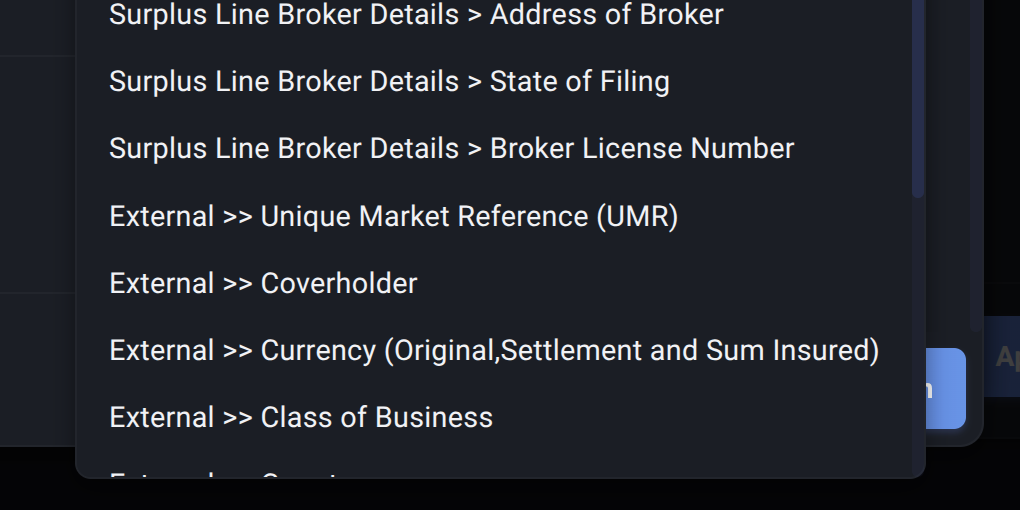
- Availability in Mapping: Any successfully extracted header fields are made available in the mapping dropdown during the review process. They are typically prefixed with
External >>to distinguish them from regular spreadsheet columns (e.g.,External >> Report Month,External >> Wholesaler).
Mapping Header Data to Table Columns
The process is identical to performing a Simple Mapping:
-
Locate Target Table Column: In the Mapping Table section of the Preview Dialog, find the row for the Table Column where you want to store the header data (e.g., a Detail Column named
Report Periodor an Attribute Column namedWholesaler Name). -
Ensure "Simple" Mapping Type: Make sure the toggle for that row is set to "Simple".
-
Select Header Field: Click the dropdown in the "Mapping" column. Scroll through the list and select the appropriate header field, identifiable by the
External >>prefix (e.g., selectExternal >> Report Monthto map it to yourReport PeriodTable column). -
Review Sample Data: Check the Sample Data Preview at the bottom. While the header data itself won't appear as a column in the sample (since it applies to all rows from that sheet), ensure other mappings still look correct. The header value will be added to each row during final ingestion.
-
Confirm/Approve: Include this mapping when you approve the sheet.
By mapping relevant header data, you enrich the data within your Decode Table, adding valuable context directly alongside your core metrics.
Finally, let's look at the last step: Approving the Upload.