Step 3 (Optional): Adding a Predefined Node
While Logic Nodes allow for flexible, custom transformations using AI, Predefined Nodes offer a way to integrate specific, pre-built functionalities into your Data Function workflow.
These nodes encapsulate more complex or specialized operations that go beyond simple data manipulation within your tables, often interacting with services outside the Decode platform.
Examples of Predefined Nodes
The available Predefined Nodes depend on what has been integrated into the Decode platform. Right now:
- OFAC Sanctions Check: Takes a list of names/entities as input and returns potential matches against sanctions lists.
Adding the Node
-
Open the "Add Block" Menu: In the Function Builder Dialog, click "Add Block".
-
Select the Predefined Function: The menu will list available Predefined Nodes, often prefixed with "Predefined:". Choose the specific one you need (e.g., "Predefined: OFAC Sanctions Check").
-
A new Predefined Node, labeled with the function's name, will appear on the canvas.
-
Connect Input Node(s): Connect the output handle(s) of the preceding node(s) (usually a Data Source or Logic Node) that provide the necessary input data to the input handle(s) of the Predefined Node. Predefined Nodes require connected input before configuration.
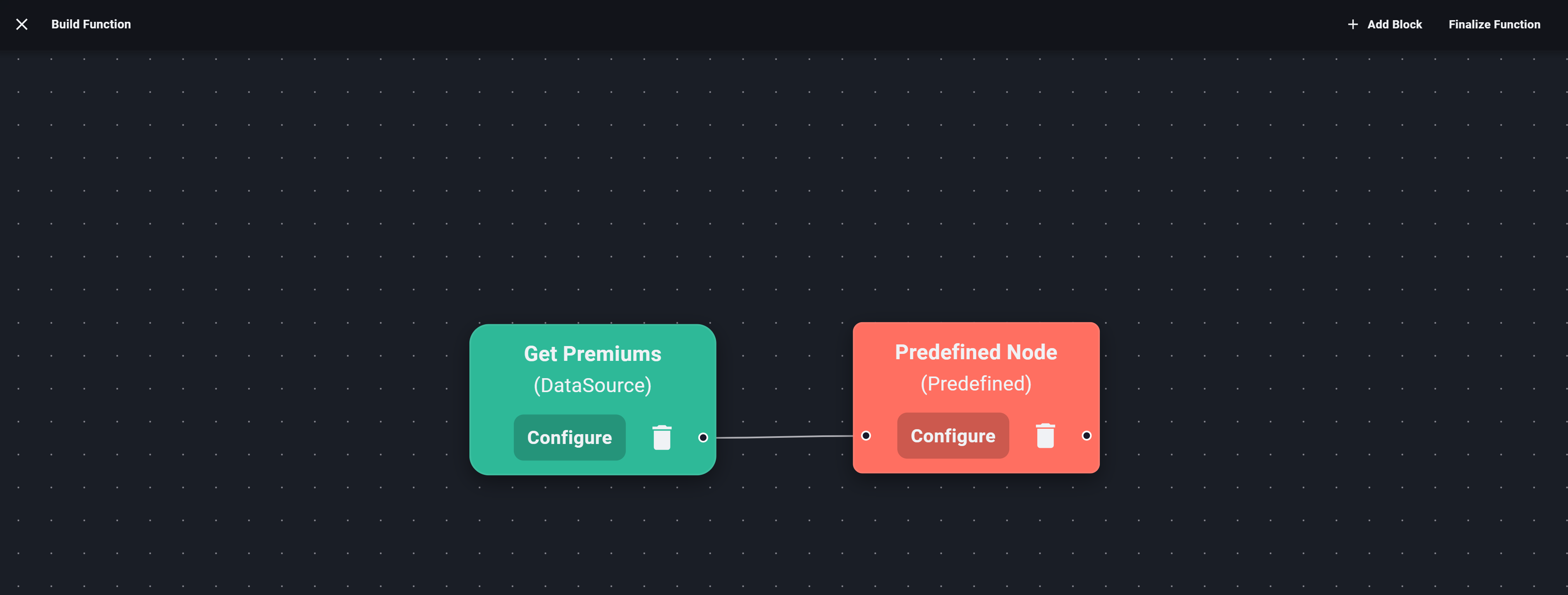
Add Predefined Node
Configuring the Predefined Node
Configuration involves mapping the data columns from your connected input node(s) to the specific input parameters expected by the predefined function/API.
-
Open Configuration: Click the "Configure" button on the Predefined Node.
-
The Predefined Block Configuration panel or dialog will appear.
-
Name (Optional but Recommended): Give this step a descriptive name (e.g., "Run Sanctions Check on Insureds").
-
Map Input Parameters: This is the main configuration step. For each required parameter listed for the API:
- Use the dropdown list next to the parameter name.
- This dropdown will contain column names available from the connected input node(s). The columns might be prefixed with the source node's name or table name for clarity if multiple inputs are possible (e.g.,
DataSource1 // Insured Name). - Select the input column that contains the data corresponding to the required API parameter. For example, for an OFAC check API parameter named
entity name, you would select the input column containing the company or individual names (e.g.,InputData // Insured Name). - Ensure all required parameters are mapped.
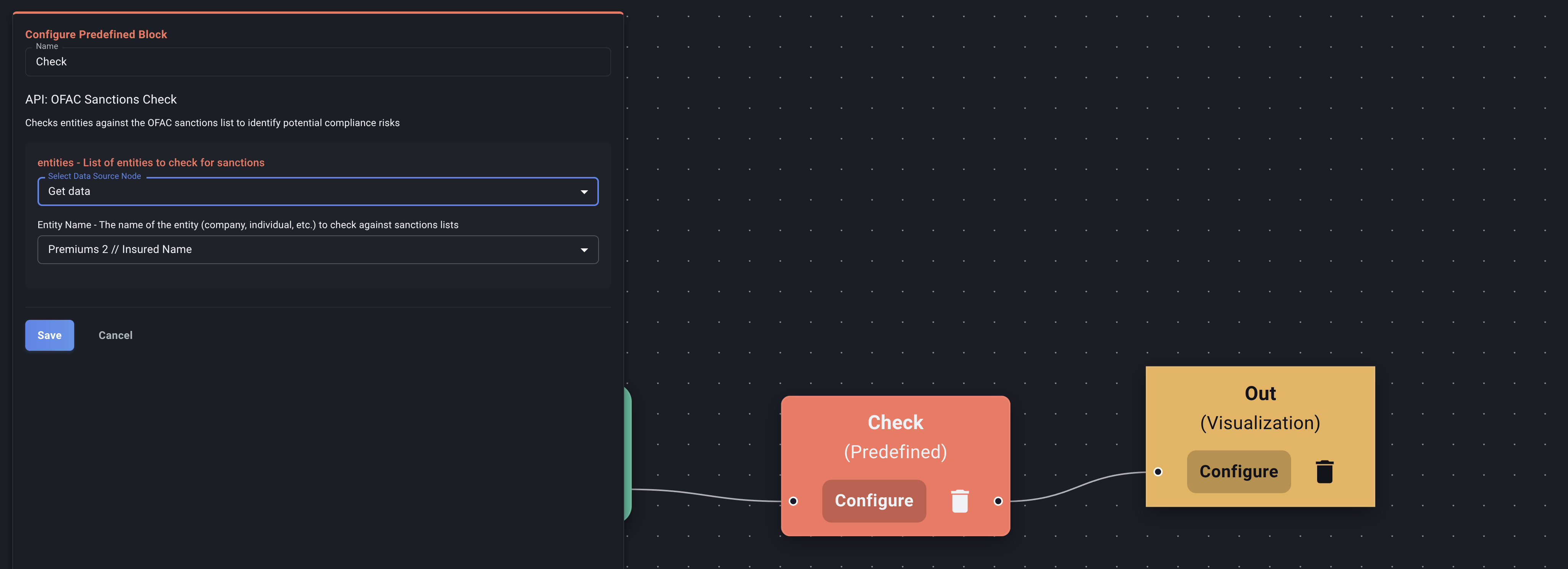
Configure Predefined Node -
Preview (If Available): Some Predefined Nodes might offer a limited preview based on sample input data. If available, click "Preview" to test the mapping and see sample output. Note: Running previews for external APIs might have limitations or costs.
-
Save: Once all required parameters are mapped, click "Save".
The configuration panel will close. Your Predefined Node is now set up to receive data from the previous node, send the mapped parameters to the underlying function/API, and pass the results (e.g., sanctions matches, validated addresses) to the next node in your flowchart.
After a Predefined Node, you might connect its output to a Logic Node for further filtering/joining or directly to a Visualization Node to display the results.