Managing Data Functions
As you build more analyses, the Dashboard Page provides tools to manage your Data Functions, including handling drafts, finalizing functions, editing, and deleting them.
Function Status: Draft vs. Final
Functions exist in one of two states:
- Draft: A function that is still under construction or hasn't been explicitly finalized.
- Can be edited using the Function Builder.
- Cannot be run directly from the main Dashboard Page list or added to Views.
- Appears in a separate "Drafts" section in the Dashboard sidebar.
- Final: A completed and saved function ready for execution.
- Appears in the main "Functions" list in the Dashboard sidebar.
- Can be run directly from the Dashboard Page using the Parameters Panel.
- Can be added to Views.
- Editing a Final function involves opening it in the Function Builder again.
Finding Your Functions
- Final Functions: Listed under the "Functions" tab in the left sidebar of the Dashboard Page.
- Draft Functions: Listed under the expandable "Drafts" section within the "Functions" tab of the left sidebar. Click the section header to expand/collapse it.
Finalizing a Draft Function
When you have finished building or editing a function in the Function Builder Dialog and are ready to run it or add it to views:
-
Click the "Finalize Function" button within the Function Builder Dialog header.
-
You may be prompted to Name the Function if you haven't already. Provide a clear, descriptive name.
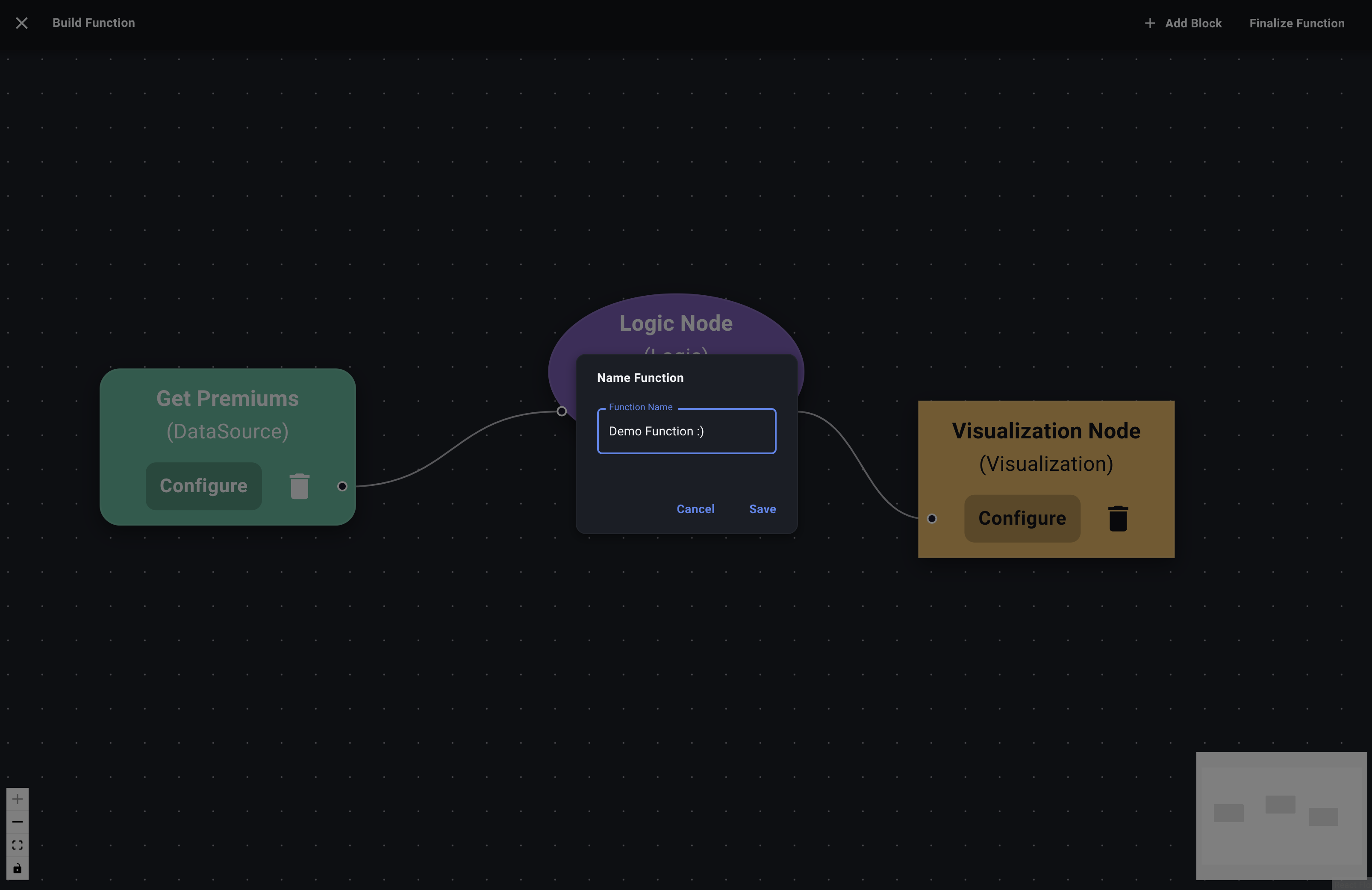
Save Function -
Click "Save".
-
The Function Builder Dialog closes.
-
The function's status changes from 'Draft' to 'Final'.
-
It will now appear in the main "Functions" list in the sidebar, ready to be run.
Editing a Function
- Editing a Draft:
- Find the function in the "Drafts" section of the sidebar.
- Click the Edit icon (✏️) next to its name.
- The Function Builder Dialog opens, allowing you to modify the flowchart.
- Click "Finalize Function" when done editing to save it as 'Final', or simply close the dialog to keep it as a draft (changes are usually saved automatically).
- Editing a Final Function:
- Find the function in the main "Functions" list.
- Click the Edit icon (✏️). (Note: This icon might be disabled for predefined functions not created by the user).
- The Function Builder Dialog opens.
- Make your changes.
- Click "Finalize Function" to save the updated version.
Deleting a Function
Warning: Deleting a function is permanent and cannot be undone.
- Find the function you want to delete in either the "Functions" or "Drafts" list in the sidebar. (Note: Deletion might be restricted for predefined functions).
- Click the Delete icon (🗑️) next to its name.
- A confirmation dialog will appear.
- Confirm the deletion by clicking "Delete".
The function will be removed from the list and its associated configuration will be deleted. If the deleted function was part of any Views, it will likely disappear from those Views as well.