Managing Values within Metadata Categories
Once you have defined your Metadata Categories (like Wholesaler or Contract ID), the next step is to add the specific Values that belong to each category. These values are the actual options you will select when tagging your data uploads.
Accessing Category Values
- Navigate to the Manage Metadata view (by pressing the edit button next to the Metadata header in the left sidebar).
- You will see a list of your defined Metadata Categories displayed as cards.
- Find the Category for which you want to manage values (e.g.,
Wholesaler). - Click the Expand icon ▶️ on the Category to reveal its details and value list.
Adding a New Value
- Within the expanded Category card, click the "Add Value" button.
- A dialog box will appear, prompting you to enter the new value.
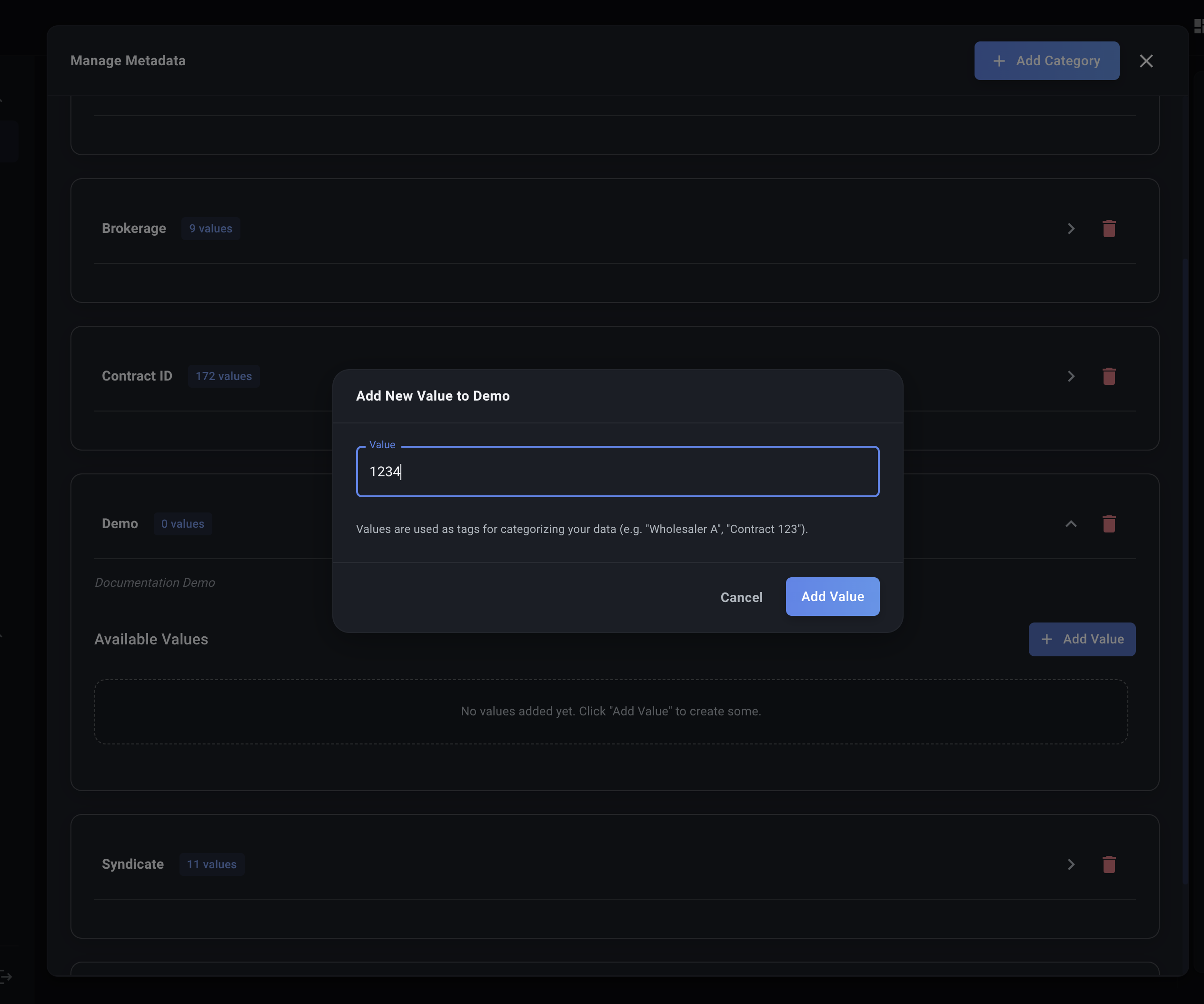
-
Value: Enter the specific value for this category (e.g., if the category is
Wholesaler, you might enterWholesaler A,Lloyds Broker Inc, etc.).- Note: Decode uses this value directly. Spaces and special characters are generally acceptable.
-
Click "Add Value".
The new value will now appear in the list of available values for that category. Repeat this process to add all necessary values (e.g., all your relevant wholesaler names, contract IDs, regions).
Deleting a Value
Warning: Deleting a value is permanent. While it won't remove tags using this value from historical uploads, you won't be able to select this specific value for future uploads or easily filter by it.
- Expand the Category card containing the value you want to remove.
- Find the specific value in the list.
- Click the Delete icon (🗑️) next to the value.
- Confirm the deletion.
The value will be removed from the list of options for that category.
By carefully managing your Categories and their corresponding Values, you create a robust tagging system that makes organizing and filtering your data in Decode much more effective. Now you can use these to set up Data Profiles or apply them directly during File Uploads.