Managing Metadata Categories
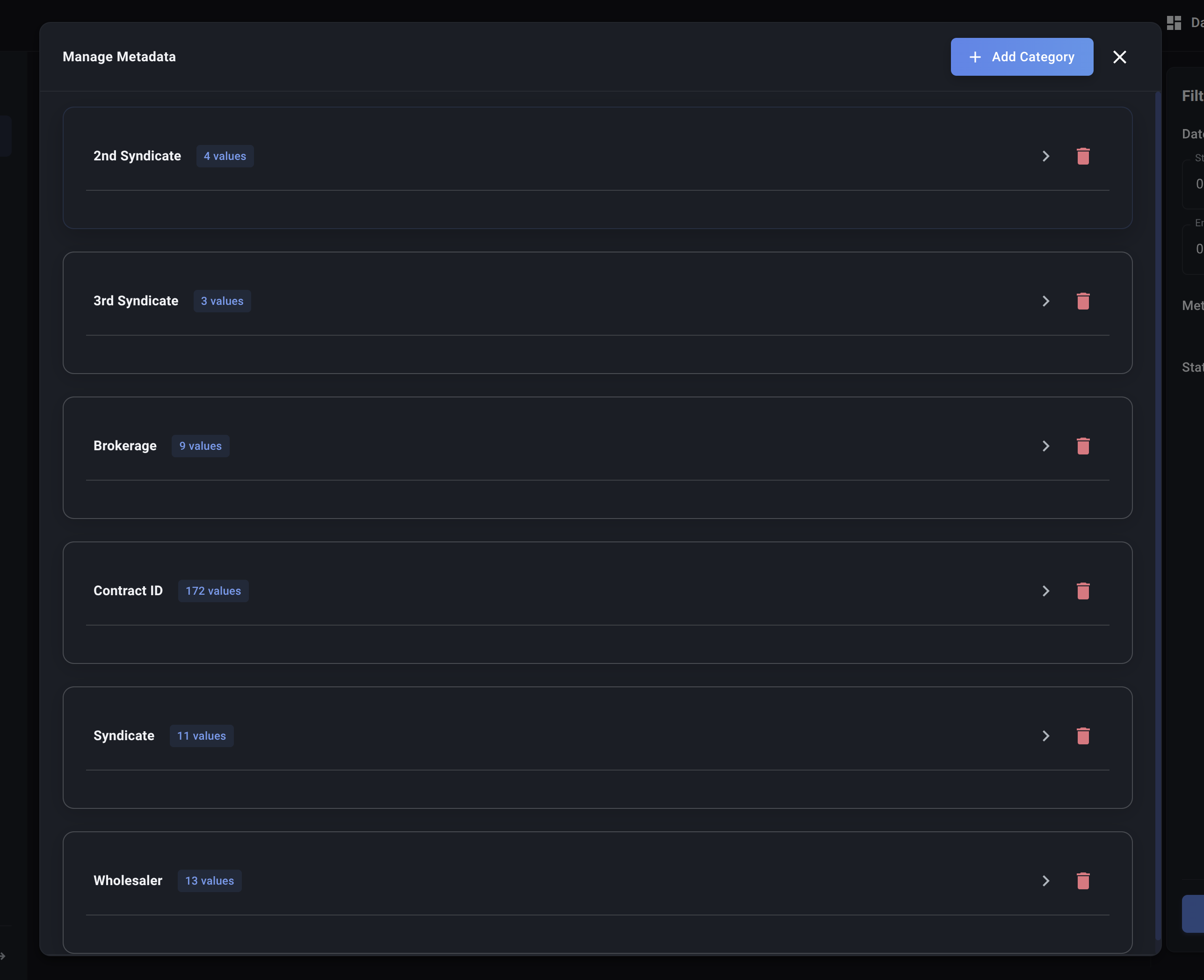
Metadata Categories are the high-level classifications you use to organize your data tags (e.g., Wholesaler, Contract ID, Region). You need to define these Categories before you can add specific values to them or use them for tagging uploads.
Accessing Metadata Management
- Navigate to the Data Page.
- Find the "Metadata" section in the left sidebar.
- Click on the edit button indicated by an edit icon ✏️ .
This will open a dedicated view showing your existing categories and allowing you to add new ones.
Adding a New Category
- In the Metadata Management view, click the "Add Category" button.
- A dialog box will appear. Fill in the following details:
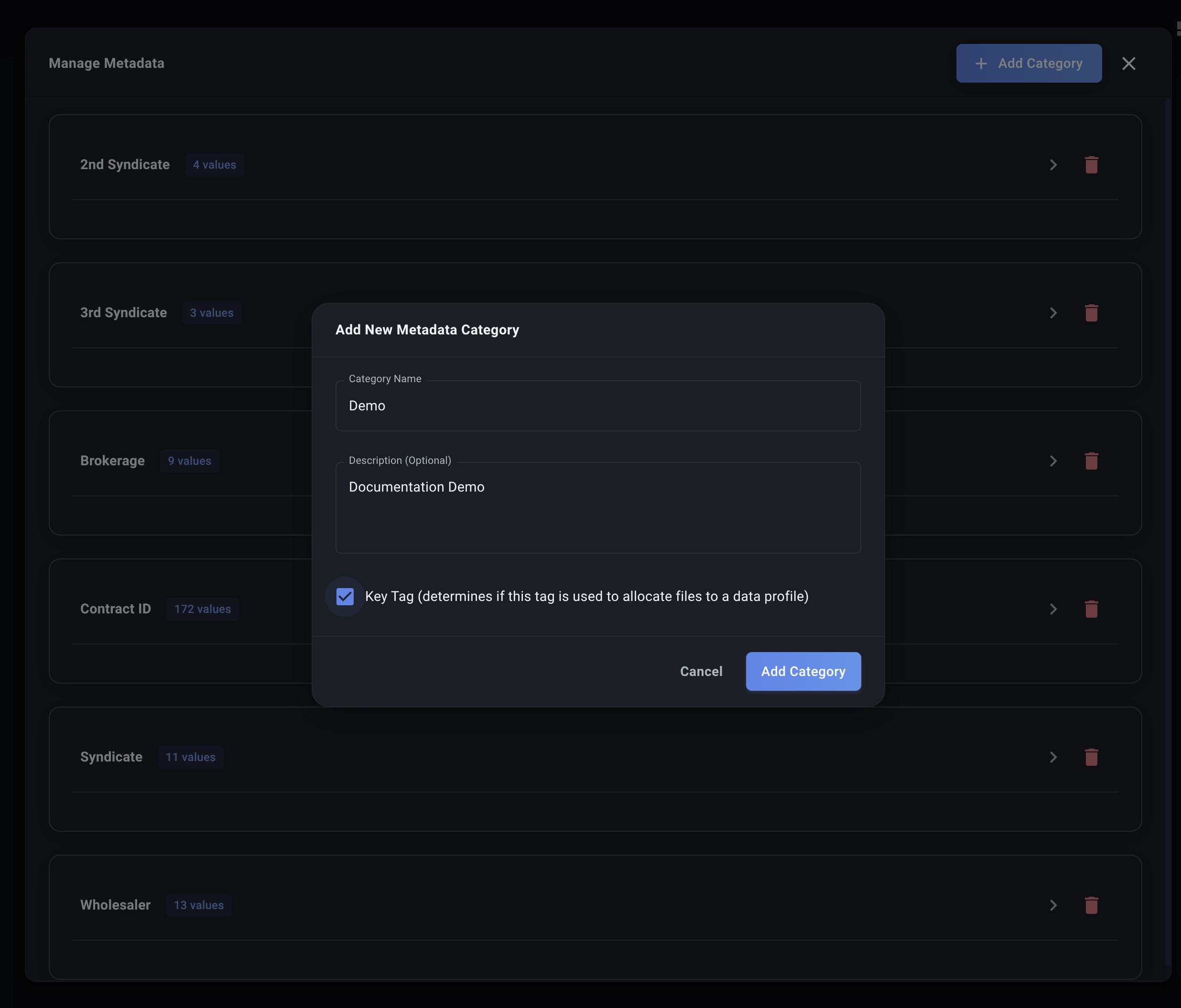
- Category Name: Enter the name for your new category (e.g.,
Syndicate,Line of Business,Broker Name). Use clear, descriptive names. Spaces are allowed.- Note: Decode will create a system ID based on this name (e.g.,
Line_of_Business).
- Note: Decode will create a system ID based on this name (e.g.,
- Description (Optional): Briefly explain what this category represents. This is helpful for documentation and team understanding.
- Key Tag (Checkbox): This is an important setting used for Batch Uploads and automatic Data Profile allocation (explained later). Check this box only if this category (like
Contract IDorWholesaler) is a primary identifier that Decode should use to automatically suggest which Data Profile a newly uploaded file might belong to. Do not check this for general descriptive tags likeRegion.
- Click "Add Category".
Your new category will now appear in the list.
Deleting a Category
Warning: Deleting a Metadata Category is a permanent action and will also remove all associated Values within it. It will not remove tags already applied to historical data uploads, but you won't be able to filter by that category anymore or add new tags using it.
- Find the Category you want to delete in the Metadata Management view.
- Click the Delete icon (🗑️) next to the category name.
- Confirm the deletion when prompted.
The category and all its values will be removed.
With your categories defined, the next step is to add specific options within them by Managing Values within Categories.